Publish your web app
Build the project and verify its AppStruct web address before sharing it.
Publish creates the browser version of the current app project. The interface displays the project's AppStruct address before you start the build.
Publish the current version
- Open Publishing in the editor’s left toolbar.
- Under Select Platform, choose Web App.
- Review the displayed address ending in .appstruct.app.
- Choose Publish to queue the build.
- Check Previous deployments for the result, then open the published address.
A queued build is not a completed deployment. The history distinguishes in-progress, successful, and failed builds. If a build fails, review its displayed error before trying again.
Check the platform, address, and build result in the same panel.
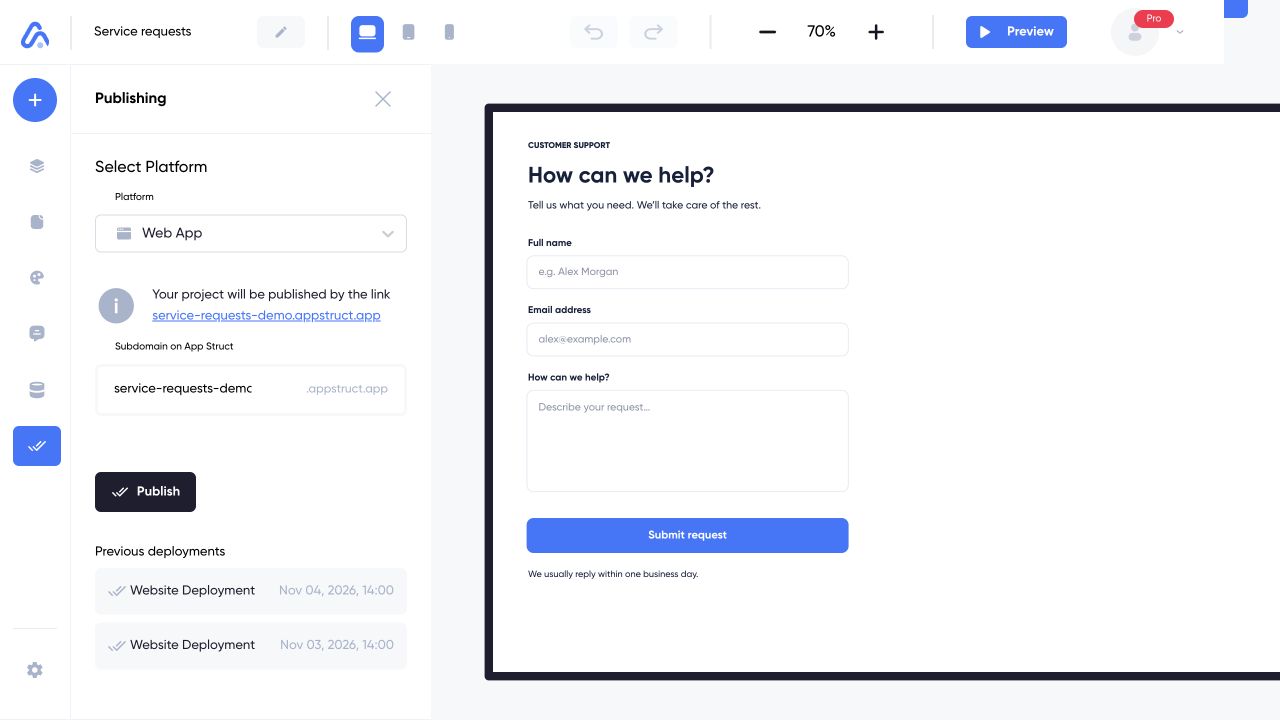
Open Publishing from the left toolbar. The screenshot uses a demonstration address and sample history to show where to check a build.
Web interface captured on 5 Nov 2026. The address and successful deployment rows are fictional example data, not a live release.
Verify the public journey
Open the published URL and test navigation, data reads and writes, media, external API requests, and narrow-screen behavior. A record appearing in Preview does not replace this release check.
When the project changes, publish again to update the browser version. Keep the editor project and the live deployment conceptually separate while reviewing changes.
Current web publishing controls
The subdomain field is read-only in this panel. Custom-domain controls and advanced PWA switches are not currently exposed here. Use the options available in the interface rather than following older instructions for unavailable controls.